
Restricted areas
The product feature restricted areas allows operators to create and manage regions that cannot be visited or passed through by vehicles. Routing is redirected around these areas. A restricted area can also be limited to a specific time span.
Restricted areas are applied during route calculation. If an alternative route exists, ioki Platform avoids the restricted area for the configured time span.
If you block the only available road with a restricted area, the routing provider will override the blocking and issue a notice. Restricted areas are not intended to exclude areas from the service area permanently. They are designed to avoid specific roads only when alternative routes to the destination exist.
Use cases of this feature
This feature can be used, for example, to block highway onramps for vehicles not designed for highways, such as tuk-tuks, or to temporarily close a street or location due to events like a parade. In such cases, the area will only be considered after the specified start timestamp and only up to the specified end timestamp.
Restricted areas can have a large impact on routes. Because routes change, they also affect ride times and pricing.
Area geometry
Each restricted area has an area type that determines the shape ioki Platform actually avoids when it calculates routes. The area type is not a display option. It sets the real geometry that routing works with, so it directly affects which roads are blocked.
- Bounding Box. The effective area is a rectangle. Even when you supply a more complex polygon, routing avoids the smallest rectangle that fully contains that polygon, not the polygon itself.
- Polygon. Routing avoids the exact polygon shape you supply.
For a Bounding Box area, the enclosing rectangle is the geometry sent to routing. Because a rectangle can cover much more ground than the shape you drew, a Bounding Box area can block roads well outside the original outline, so define Bounding Box geometry carefully.
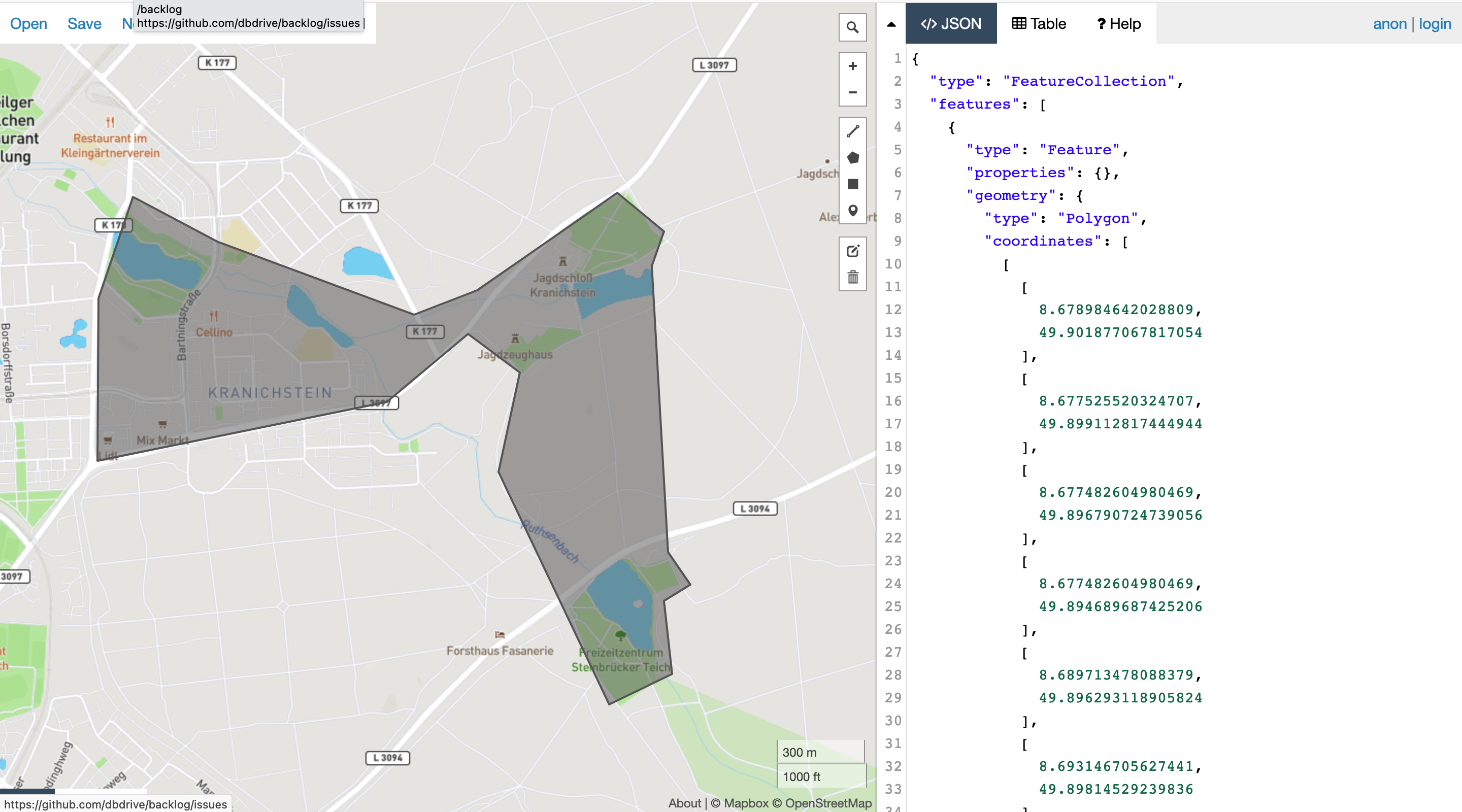
This area, which is defined as a polygon in GeoJSON
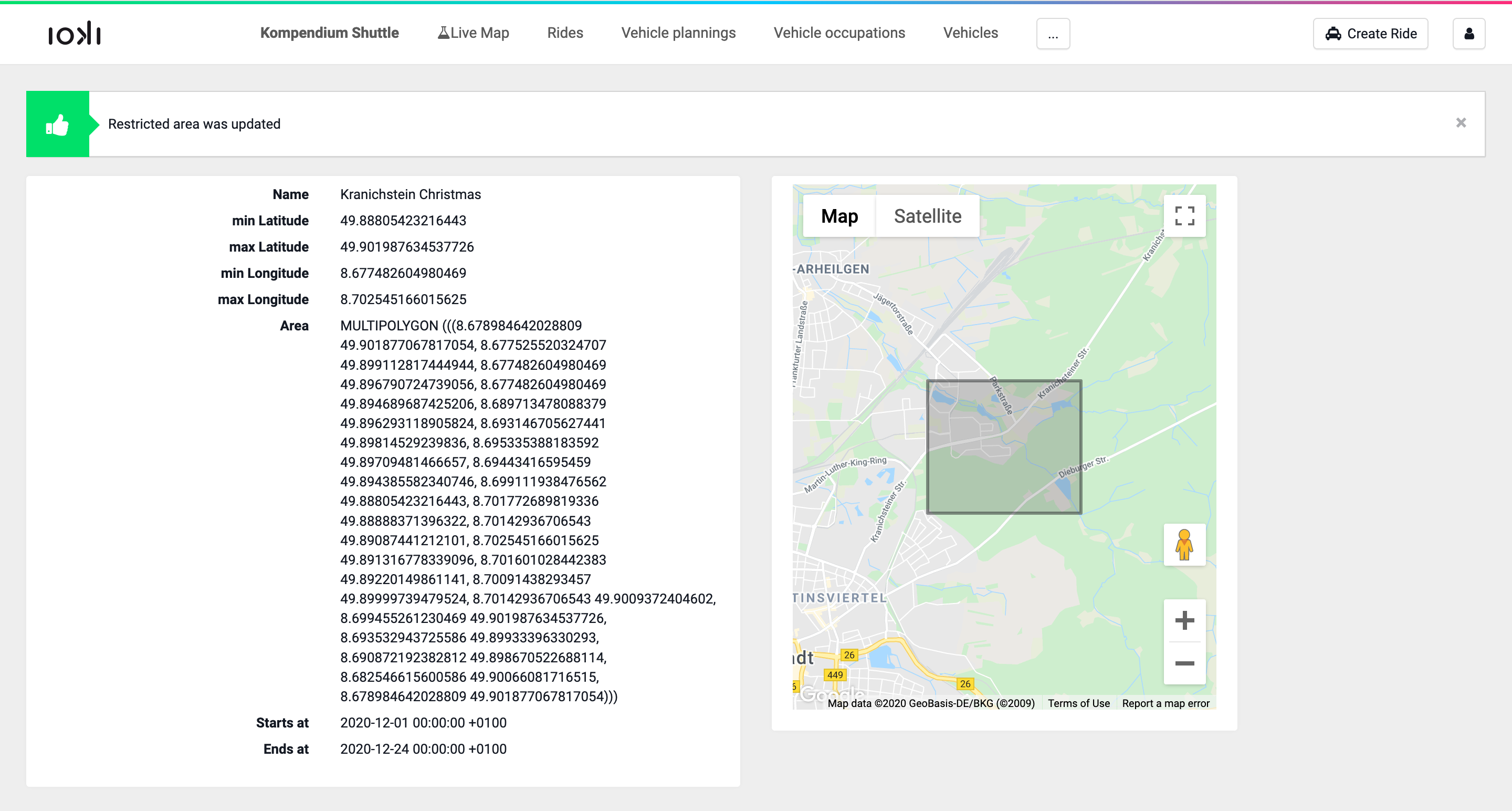
results in the following bounding box, if inserted as a Bounding Box restricted area:
To restrict a specific street, an effective strategy is to define several restricted areas at the intersections along that street.
Limits
A product can have up to 250 restricted areas in total across both the Bounding Box and Polygon area types. Up to 20 of these can use the Polygon area type.
States
A restricted area can have the following states.
- applied. The restricted area is applied and live for the product.
- application pending. The product’s turn-by-turn routing provider is NextBillion, and the area has not yet been marked as synced.
- deletion pending. The same as application pending, but for a deletion of a restricted area.
If the turn-by-turn routing provider is changed from HERE to NextBillion, existing restricted areas show as not synced until they are synced to NextBillion.
Routing providers and environments
How restricted areas can be managed depends on the environment and the turn-by-turn routing provider.
| Environment | Routing provider | Allowed actions | Notes |
|---|---|---|---|
| Production | HERE | Add, delete | Editing is not supported. New restricted areas take effect immediately. |
| Production | NextBillion | Add, delete | Editing is not supported. Areas must be synced manually before they take effect. |
| Demo | HERE & NextBillion | None | Adding, deleting, or editing restricted areas is not permitted, because changes would affect map data used in Production. |
Activate this feature
Roles: Super Admin
- Navigate to the management settings of the product.
- Select the checkbox Restricted areas.
- Select Save.
The admin procedure for this feature is documented in Restricted areas in ioki Operator or Restricted areas in Control Center.