
Account settings
Administrators can manage their own account under Account and Settings > Account Settings.
The page contains two kinds of settings:
- personal account settings for the current administrator
- provider-specific company settings for a selected provider
Personal account settings
By default, the left side of the page shows the personal account settings form.
Stemdata
The Stemdata section contains the following fields:
- First name. Enter or change the administrator’s first name.
- Last name. Enter or change the administrator’s last name.
- Language. Select the user interface language.
- Timezone identifier. Select the time zone used for the account.
Services used
The Services used section lets administrators assign the services they use to their own account.
Currently, the form offers the following checkboxes:
- DRT Platform
- ioki Route
Multiple services can be selected at the same time. The selected services are stored on the administrator account as service identifiers.
After changing any personal account settings, select Save.
Company settings
If the administrator has provider memberships, the right side of the page shows a Company Settings card with a provider selector.
After selecting a provider and opening the company settings, the left side of the page switches from the personal account form to the company settings form for that provider.
The company settings form contains the following fields:
- What is your role in the company?. Select the role that best describes the administrator’s relationship to the selected provider.
- Your job title…. This text field is available when the
otherrole is selected and can be used to enter a custom job title.
After changing any company settings, select Save.
Sessions
Every administrator can view their own active login sessions and log out or end a session from the profile view, where they can also change their password or manage two-factor authentication.
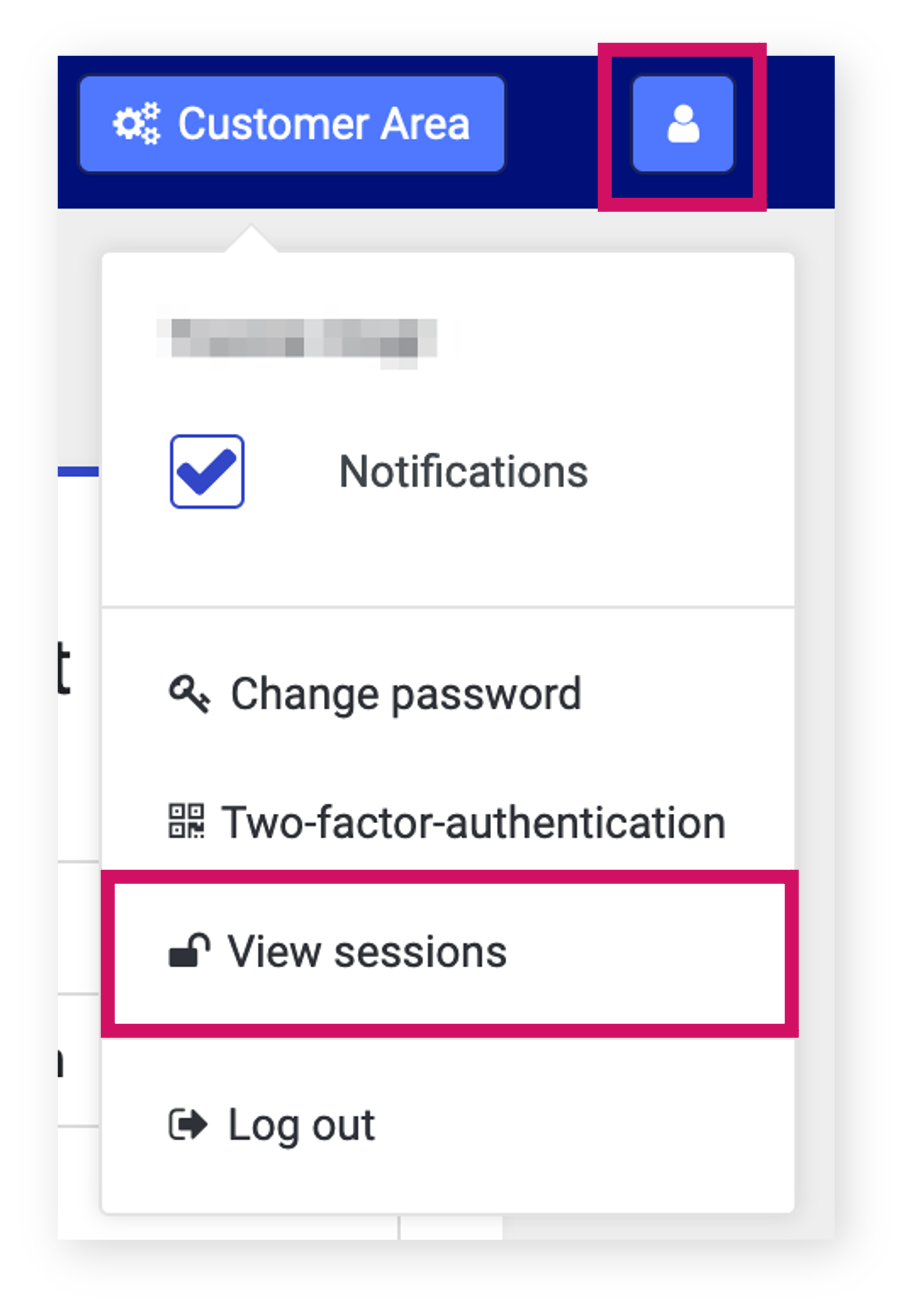
This is especially important if an administrator is concerned that someone may have gained unauthorized access. It also makes connections to other systems visible: if other systems are involved, an additional list titled connections to other systems appears, which can include connections to systems such as ioki Web Booking, ioki Academy, and others.
Selecting Logout session ends the selected session.
Related settings cards
The right side of the page also contains shortcuts to additional account-related areas:
- SSO Settings. Open the Single Sign On settings page to connect or disconnect an SSO provider.
- Consent settings. Open the page that shows the administrator’s consent settings.
- Account Support. Open the page that shows who is responsible for managing the account.
- Danger Zone. Start the account deletion flow.