
Geographic properties
In the Geographic properties section in the management settings of a product, the following properties can be configured.
Disable station markers in admin UI
If Disable station markers in admin UI is enabled, the station markers on the product overview map are hidden. This can be useful, for example, when many virtual stations exist.
If this flag is not active, it’s also possible to decide whether to show or hide stations on the map in Control Center. Stations can be toggled by selecting the checkbox in the lower-left corner of the map. If the flag Disable station markers in admin UI is active, this option is not available.
Area update strategy (in case matching configurations change)
The second property is Area update strategy, which defines how the product area is displayed based on the matching configurations. This is particularly relevant if the area consists of more than one GeoJSON polygon in the matching configurations.
The following options are available:
- skip. Nothing is updated.
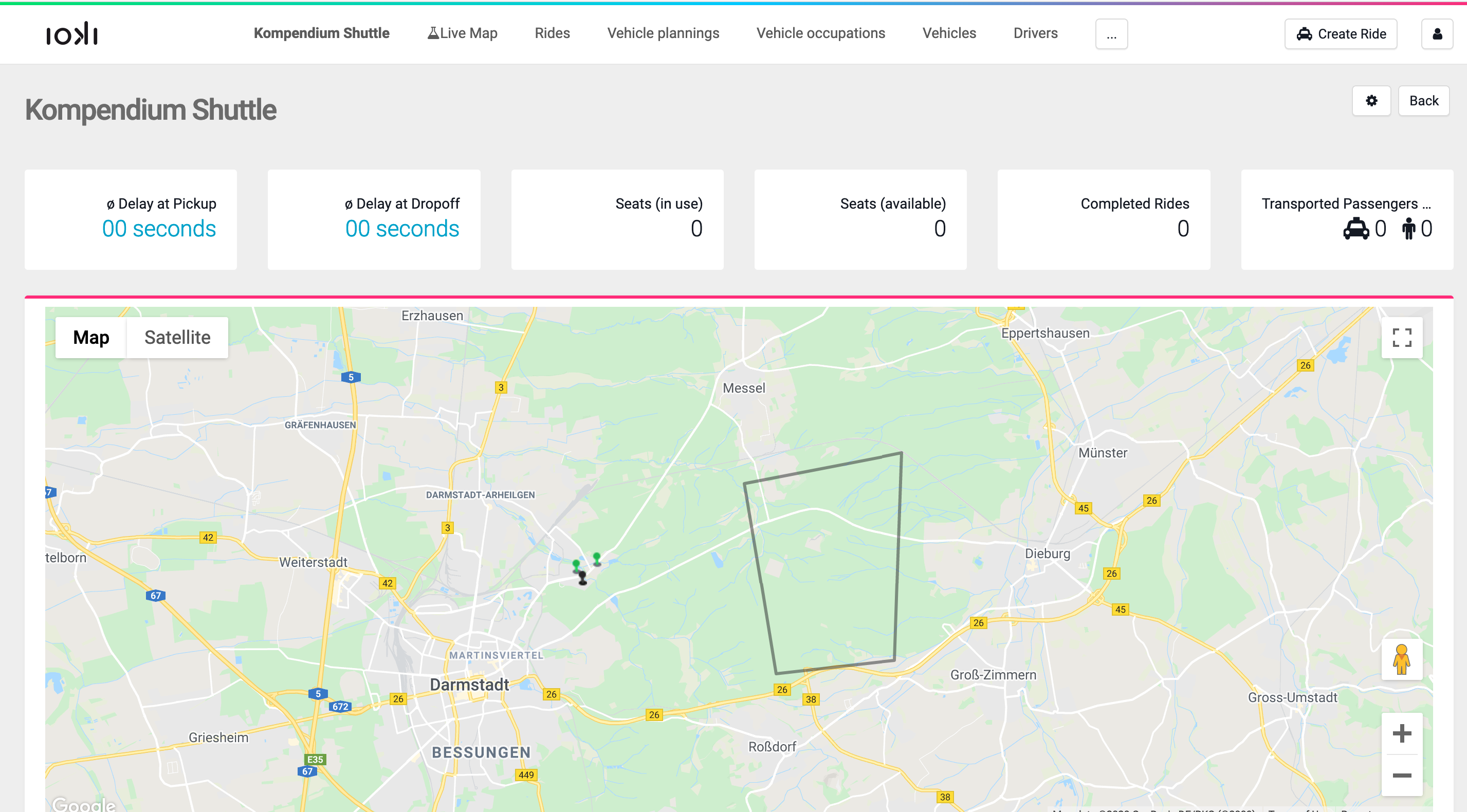
- single. The product area is set to the most recently updated area from the matching configurations.
- simple_union (default): The union of all specified polygons is used as the product area.
- buffered_union. A buffer of approximately 80 meters is applied around the borders of each area, then the union of these buffered areas is created. Finally, the buffer is subtracted again from the new borders. The idea is that if two GeoJSON areas are close to each other, the space in between them should also be included in the product area.
- recollect. This does not build a true union of the individual polygons. Instead, it layers the individual areas so that overlaps remain. In most cases, this is not the preferred option.
Change the area update strategy
To change the geographic properties and update the view in Control Center, ioki Passenger App, and ioki Web Booking, a matching configuration must also be updated.
A minor change is sufficient, for example, adding a space or modifying a single letter. Without such a change, the update does not take effect.
For single, it is important to update the matching configuration containing the area that should be displayed.
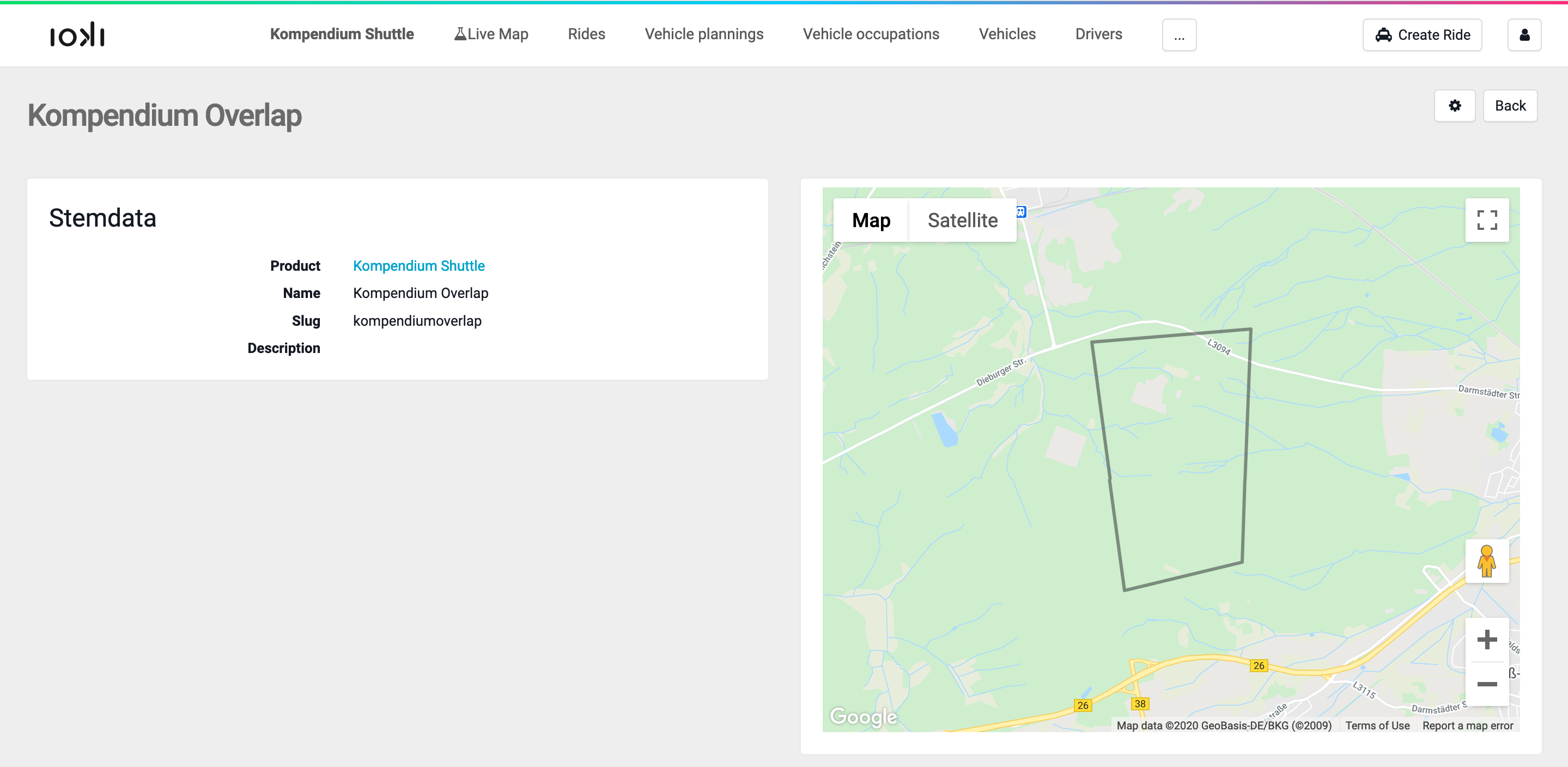
Suppose the following three matching configurations are defined for the product:
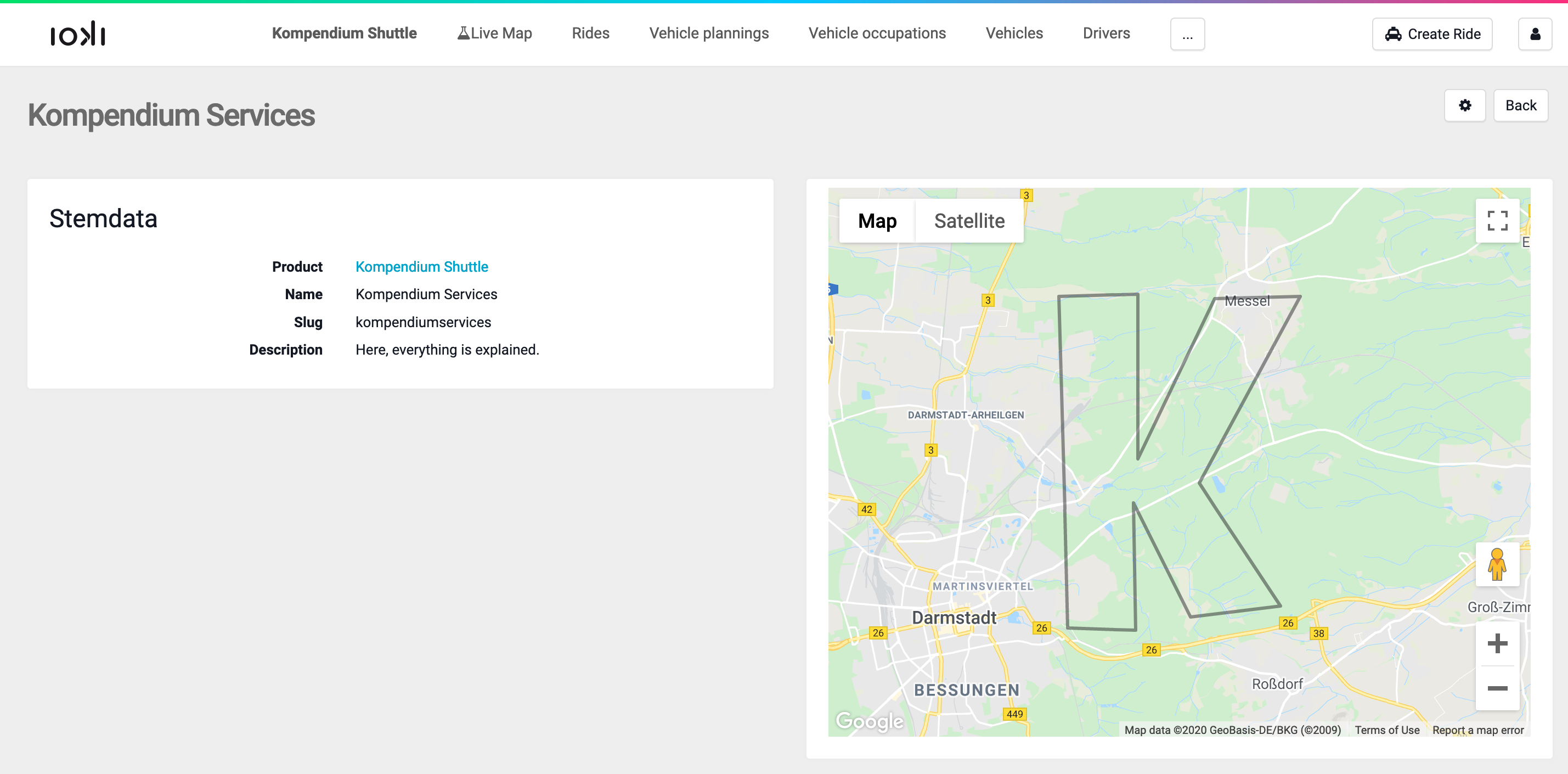
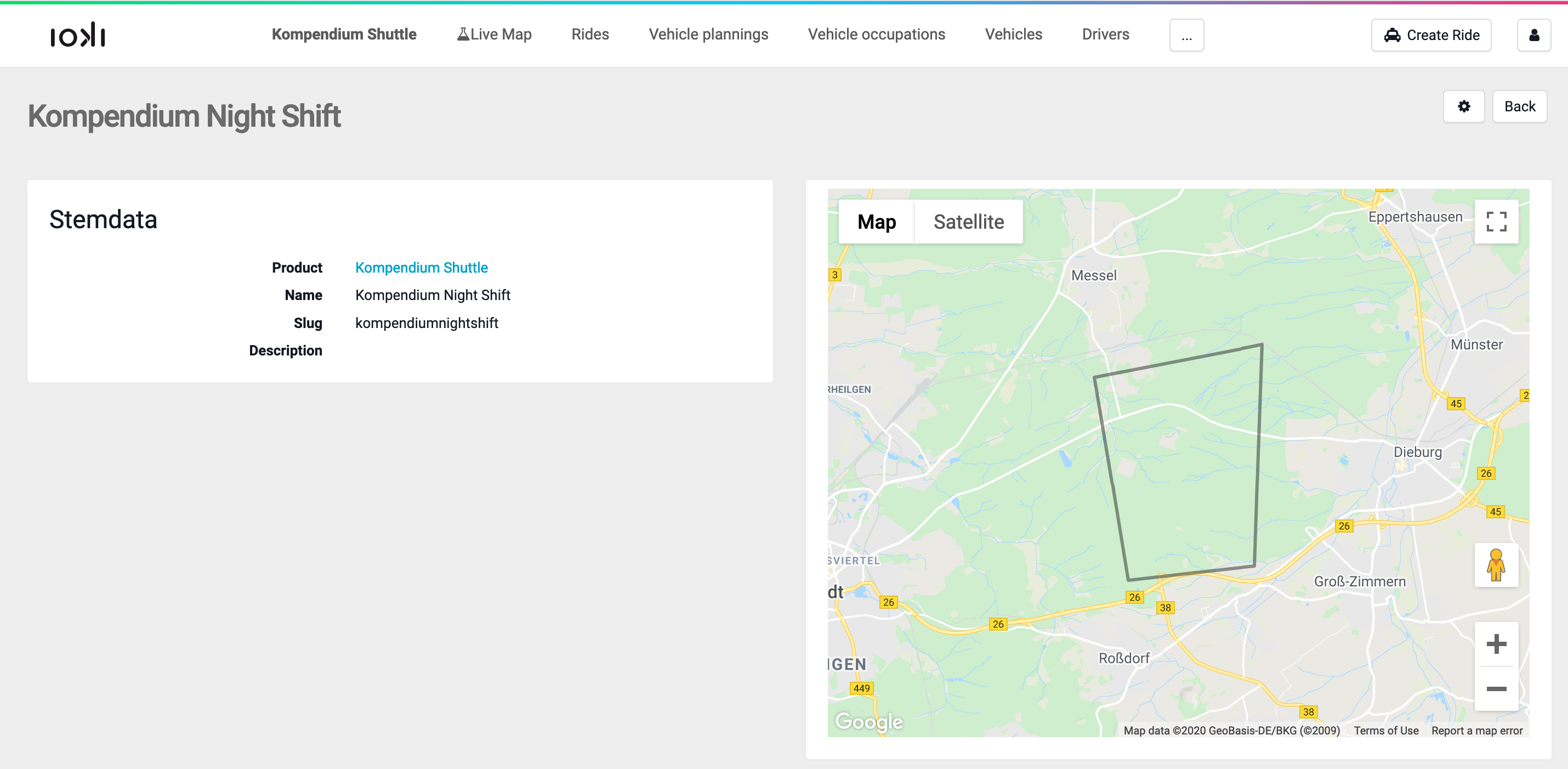
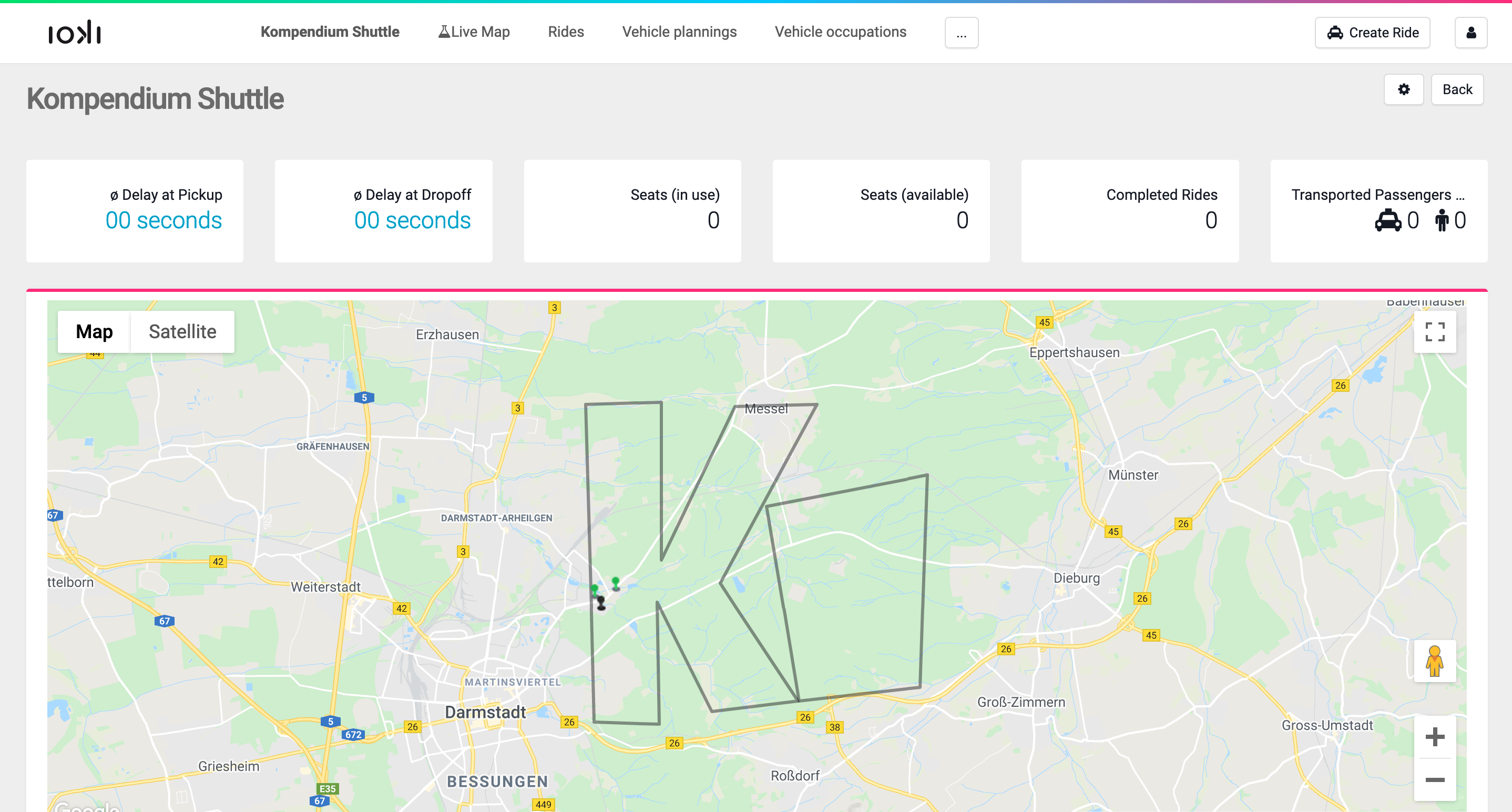
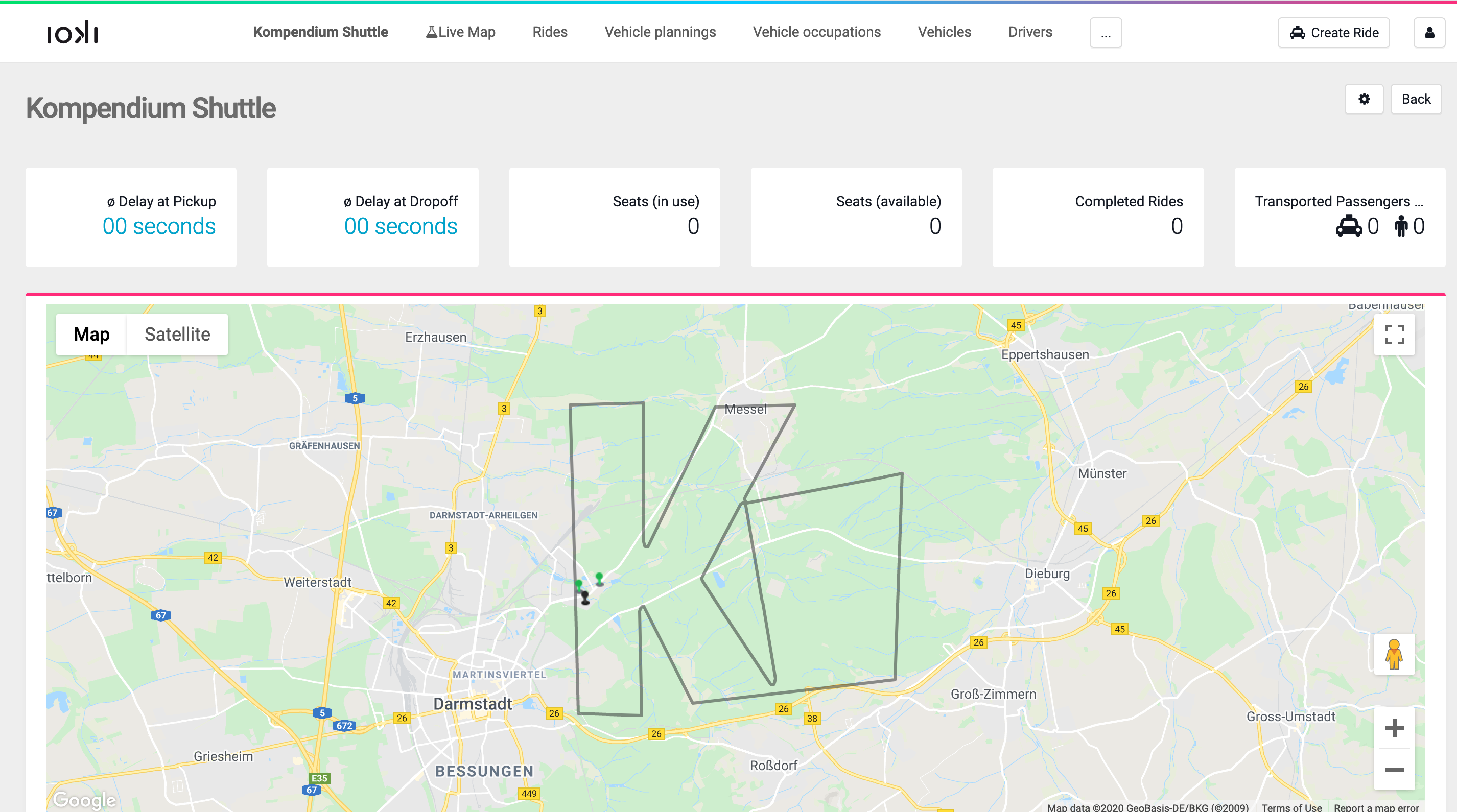
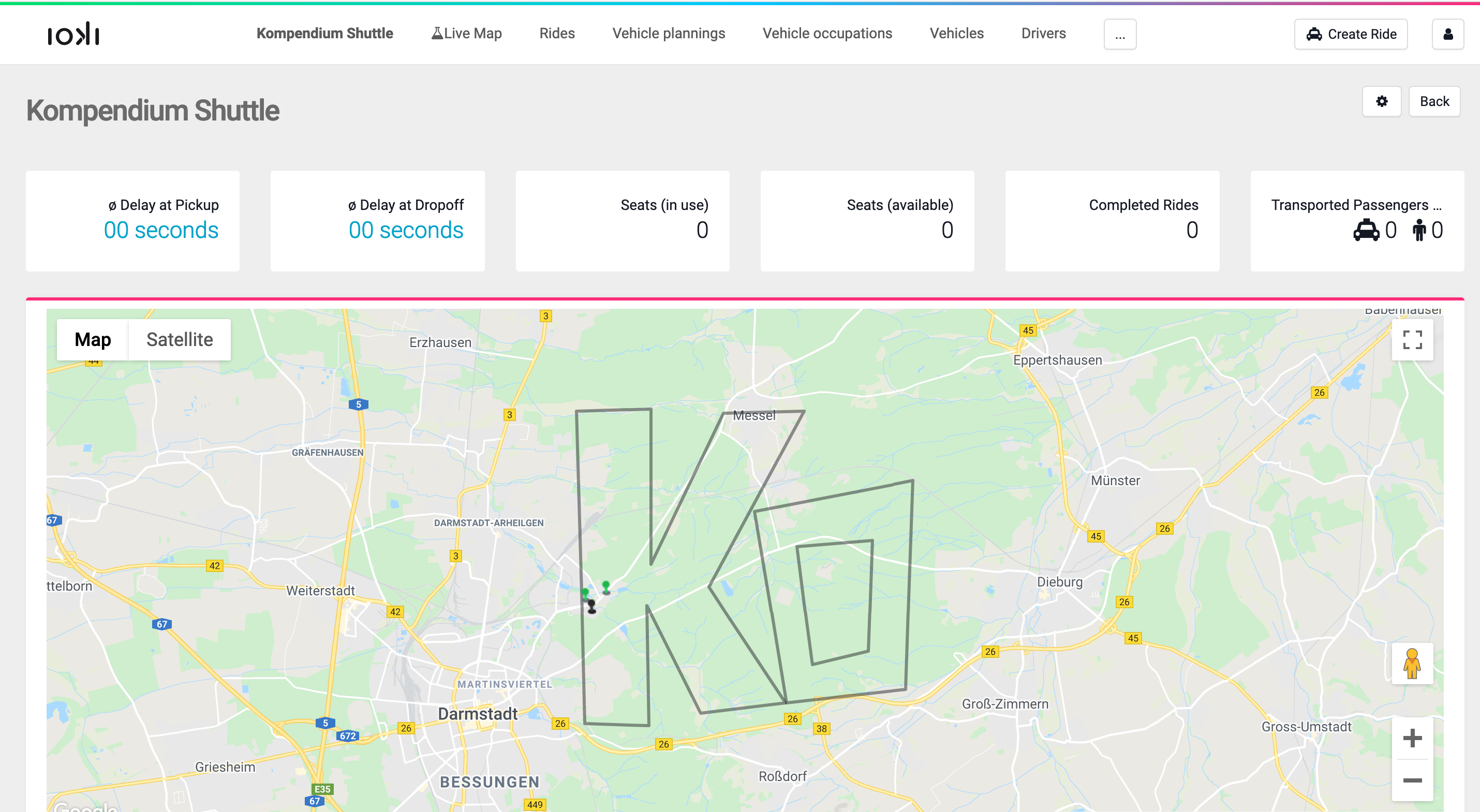
Assume further that the matching configuration Kompendium Overlap was updated last. The product areas would then appear as follows:
single:
simple_union:
buffered_union: (note the subtle differences at the top-left and bottom-left corners of the “o,” which merge with nearby parts of “K”)
recollect: (note that the center of the “o” is not cut out but simply layered on top)
Roles: Super Admin